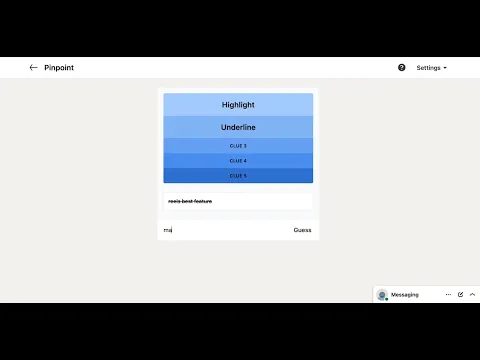
LinkedIn Pinpoint #573 Answer & Analysis
Looking for the Pinpoint #573 answer? Beyond Highlight, Underline, Bold, Italic, and Strikethrough, the logic is trickier than you think. It's not about physical document markups! Get our fast answer and expert logic tips below to save your streak now.
LinkedIn Pinpoint 573 Clues & Answer
💡 Hover (desktop) or tap (mobile) each clue to see how it connects to the answer
#1
Adds a color block behind text, mimicking the physical act of using a fluorescent marker.
#2
A legacy formatting style used to denote links or emphasize text when bolding isn't preferred.
#3
Increases weight to draw immediate attention; the most common formatting tool.
#4
Slants text for subtle emphasis, titles, or foreign words; suggests a stylistic shift.
#5
Represents the "Revision" aspect of word processing, signaling that text is no longer valid.
Answer: Ways to format text in a word processor
LinkedIn Pinpoint #573 Expert Logic
1. Introduction
LinkedIn Pinpoint #573 is a masterclass in User Interface (UI) recognition. This puzzle draws from the daily digital vocabulary of millions of professionals, bridging the gap between traditional typesetting and modern digital composition. While these terms are now synonymous with software toolbars, they represent a specific set of commands designed to alter the visual hierarchy and meaning of written language within a word processor.
2. How the Puzzle Came Together
The puzzle begins with Bold and Italic, the two most common forms of typographic emphasis. These clues immediately anchor the player in the realm of "Fonts" or "Text Styles." However, the addition of Underline—a practice that originated in the era of typewriters when bolding was physically impossible—narrows the category from general typography to specific document editing.
The logic solidifies with Highlight. Unlike font styles, highlighting introduces the concept of a "background" layer, suggesting a more interactive editing environment like a digital document. Finally, Strikethrough acts as the definitive logical lock. While the other clues suggest emphasis, strikethrough specifically denotes deletion or completion, a function unique to the editorial workflow of a word processor. Together, these five elements form the "essential toolkit" found in the "Home" or "Format" tab of every major text editing software.
3. Category: Pinpoint 573
- A. Core Answer: Ways to format text in a word processor
- B. Difficulty Rating: 1.5 / 5.0 (High accessibility due to the ubiquity of office software).
4. Words & How They Fit
Semantic Logic Breakdown
- Visual Hierarchy: Each clue represents a method to change how a reader perceives specific text without changing the words themselves.
- Toolbar Synergy: All five clues are typically represented by iconic buttons (B, I, U, abc, and a pen icon) located within the same functional cluster in software like Microsoft Word or Google Docs.
Logic Role Classification
| Clue | Logical Role | Why it fits |
|---|---|---|
| Bold | The "Shouter" | Increases weight to draw immediate attention; the most common formatting tool. |
| Italic | The "Whisperer" | Slants text for subtle emphasis, titles, or foreign words; suggests a stylistic shift. |
| Underline | The "Classicist" | A legacy formatting style used to denote links or emphasize text when bolding isn't preferred. |
| Highlight | The "Annotator" | Adds a color block behind text, mimicking the physical act of using a fluorescent marker. |
| Strikethrough | The Editorial Key | Represents the "Revision" aspect of word processing, signaling that text is no longer valid. |
5. Better Analysis Directions
A. Red Herring Analysis (The "Web Design" Trap)
A common pitfall for technical users is over-specifying the category as "CSS Properties." While font-weight: bold and text-decoration: underline exist in code, "Highlight" is not a standard CSS property (it’s usually background-color). The expert recognizes that Pinpoint targets a general professional audience, making "Word Processor" the more statistically likely and inclusive answer.
B. Historical Pattern (Functional Clusters)
Pinpoint often groups items by their Digital Real Estate. Just as a previous puzzle might group "Save, Print, Copy, Paste," #573 groups "Formatting Toggles." When you see three or more items that coexist on a standard software ribbon, you have found the logical "Location" of the answer.
C. The Expert Workflow
- Pattern Recognition: Group Bold, Italic, and Underline as the "Primary Emphasis Trio."
- Expansion: Note that Highlight adds a layer of "Reviewing/Editing."
- Verification: Confirm that Strikethrough completes the set of standard formatting buttons.
- Final Synthesis: Define the environment where all five are used simultaneously (The Word Processor).
6. Lessons Learned From Pinpoint 573
This puzzle highlights the importance of functional grouping. In the digital age, our brains have mapped these terms to specific "muscle memory" actions on a keyboard (like Ctrl+B or Ctrl+I). When solving Pinpoint, if the clues feel like they belong to a specific "Menu" or "Tab" in your daily software, you have likely cracked the code.
💡 Trivia: The Renaissance Roots of the "Italic"
While we use Italic today as a simple formatting button in a word processor, it was originally invented in 15th-century Italy by Aldus Manutius for a very practical, non-stylistic reason: to save money.
Italic type is narrower than standard Roman type. By slanting the letters, Manutius could fit more words on a single page, allowing him to produce smaller, more portable "pocket books" (the ancestors of modern paperbacks). This reduced the amount of expensive paper and vellum required, making literature more affordable for the masses!
FAQ
Q: Why isn't "Font Size" included in this list? A: While Font Size is a formatting option, it is a numerical value rather than a binary "toggle" like Bold or Italic. Pinpoint clues often favor specific, named styles.
Q: Is Strikethrough used for anything other than editing? A: In modern "To-Do" list apps and word processors, it is the universal symbol for a "Completed Task," adding a psychological sense of accomplishment to the formatting choice.
Watch the logic walkthrough